Reframe in Your Pocket: Editing Vertical Video on Your Phone
The footage is already on your phone. So is the edit. How to turn wide clips into finished 9:16 stories with one finger, minutes after you shoot them.
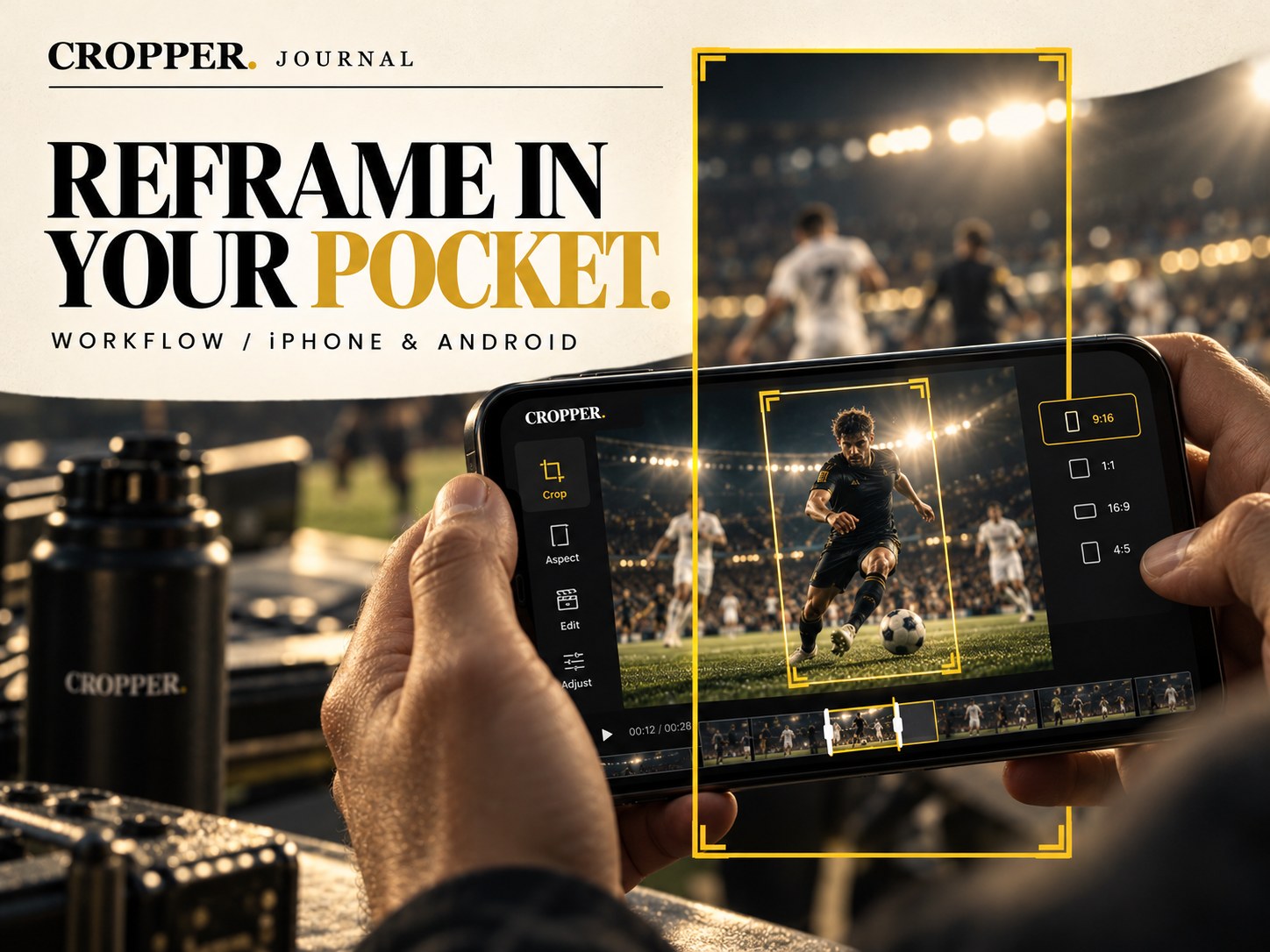
The best moment of the shoot is usually already on your phone. You filmed it wide, the light was right, and the clip is sitting in your camera roll. The question is how quickly it can become a vertical story without a laptop, a timeline or an export queue.
With Cropper Mobile, the answer is: before you leave the location.
The edit lives where the footage lives
For a lot of creators, the phone is the camera, the library and the publishing tool. Sending clips to a desktop just to change the aspect ratio adds a step that has nothing to do with the story.
Reframing on the phone removes that step. You open the wide clip, choose where the viewer should look, and export a 9:16 version that is ready for Reels, Shorts and TikTok. The 16:9 original stays untouched, so you can still cut a widescreen version later.
One finger, every frame
Cropper Mobile is built around a simple idea: the crop follows your finger.
Press play and the wide image runs with a vertical window on top of it. Move your finger and the window moves with the action. A player breaks down the wing, a speaker leans toward the guest, a dancer crosses the room, and you follow them the way a camera operator would. Each decision becomes a keyframe, so the movement is recorded as you watch.
There is no timeline to manage and no numbers to type. You see the source and the vertical frame together, and your hand does the framing.
Slow it down when the action is fast
Fast footage is where hand-guided reframing earns its place, and also where it needs the most care. Drop the playback speed for sports, dance or anything with quick direction changes. At half speed you have time to anticipate the move instead of chasing it, and the result looks calmer at normal speed.
When the action is slow, run it at full speed and keep your touches few and deliberate. Fewer, better-placed keyframes read as a real camera move. Constant small corrections read as nerves.
Choose how the frame travels
Between two keyframes, the frame has to get from one position to the next. Cropper lets you decide how that movement feels. A gentle glide suits interviews, travel and anything with a relaxed pace. A quicker move suits sport, where the frame needs to keep up with the ball.
This is the difference between hand-guided reframing and automatic tracking. Auto-follow tools decide the motion for you, and the result often feels robotic. Here the editor picks the rhythm.
A practical phone setup
Hold the phone sideways. The wide source fills more of the screen, and you can see what is coming into frame before it arrives.
Use two hands, guide with one finger. Brace the phone with both hands and steer with a single thumb or finger. A steady grip means a steady frame.
Work in short sections. Reframe a few seconds, stop, review, continue. It is easier to fix one move than to redo a whole clip.
Watch it upright before you post. Turn the phone vertical and play the result the way your audience will see it. Check that faces, the ball and any on-screen text stay clear of captions and app buttons.
When to reach for a bigger screen
The phone is the fastest route from shoot to post. For long edits, or footage where you want to see more of the frame at once, a tablet gives you more room, and the Cropper plugins for Premiere Pro and DaVinci Resolve bring the same approach to a professional timeline. Same idea, different desk.
Shoot wide. Reframe by hand. Post today.
Cropper Mobile is free to download on iPhone and Android. Open a wide clip, guide the frame with your finger and export a vertical story in minutes.